
DeccanPro · Chennai restaurant guide
https://deccanpro.com/guides/restaurant-pos-staff-permissions/
Updated
Write the restaurant policy before choosing role names
List the work that matters in your service: entering an order, changing a quantity, applying a manual discount, voiding a sale, issuing a refund and viewing reports. For each action, write allowed, approval required or not allowed. These are decisions for your restaurant; a preset name such as cashier is only a starting point.
DeccanPro includes reusable permission groups and checks for configured POS actions, including manual discounts, sale voids and refunds. The effective permissions depend on the assigned role and any user-specific settings. Ask the demonstrator to show the actual configuration for the staff member who will use the counter.
The real demo screen below shows a cashier permission-group summary. Its description includes a Phase 2 note: a listed rule is not proof that every restriction is enforced in your installed version. Use the action-by-action checks in this guide to establish what actually happens under the intended staff account.
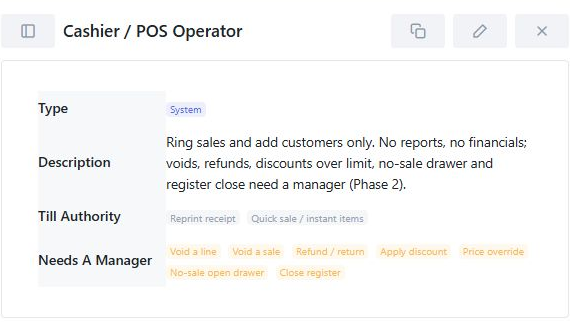
Test a configured staff account in a fresh session
Use a supervised demo account with the intended restrictions explicitly configured. Sign out of the owner session and sign in as that staff member. Confirm the displayed identity before beginning. Keep an authorised owner available so the exercise does not leave the restaurant without access.
An existing account without a configured POS permission matrix is not evidence of a restricted setup. Do not infer a deny rule from an unchecked-looking screen, a role label or a test performed under an owner account. Record the assigned role, relevant user overrides and software version, then repeat after any access change using the supported session-refresh process.
Check a manual discount below and above the intended cap
Use a fictional Rs.200 food subtotal with no other adjustments in the practice order. If the restaurant chooses a 5% manual discount cap, test a 5% discount first: Rs.10 discount leaves Rs.190. Then request 10%: Rs.20 would leave Rs.180. The second request must follow the configured approval or denial path rather than being accepted silently by that restricted account.
In the reviewed discount configuration, a cap of zero means no cap when discounting is allowed; it does not mean zero-percent permission. Check both the permission switch and the numeric limit. This exercise concerns manual discounts. Coupons, loyalty offers and other adjustments have separate rules and should not be treated as the same test.
Record both allowed and restricted outcomes
A blocked action alone is not enough: the account must still perform its normal work. Run the paired checks below with training orders and record the observed result. The table is an acceptance plan, not a claim that one preset matches every restaurant policy.
Scroll sideways if needed to see all columns.
| Action | Demonstrate | Record |
|---|---|---|
| Normal order | The staff member completes the restaurant task they are authorised to perform. | Account identity, task and saved order reference. |
| Manual discount | An allowed discount and an above-limit request on the same training subtotal. | Configured cap, observed amount and approval or denial. |
| Sale void | A staff account without independent void authority requests a permitted training void. | Whether approval is required and the resulting order state. |
| Refund | Rehearse the supported refund path with an appropriate test sale. | The permission decision separately from any payment-provider action. |
| Report visibility | Open the reports the restaurant intends that role to see. | Actual accessible reports; do not assume financial totals are hidden. |
Keep approval credentials with the approving person
Have the authorised person perform any approval directly through the supported process. Staff should not borrow the owner login simply to finish the test. Record the action and outcome without copying a password, PIN or approval token into the worksheet.
After approval, return to the restricted staff workflow and try another action that still requires approval. Confirm that the demonstration has not simply left the counter operating as the owner. Ask what evidence of the approval and resulting sale state the actual installation retains; do not assume a particular audit-history screen or retention period.
Separate permission to refund from money movement
A POS permission decision and the return of money through a bank or payment provider are different events. Keep this demonstration in a test environment and agree the supported procedure before any real transaction. A saved refund record is not by itself proof that a customer received money.
At the end, have the cashier and owner locate the same test sale and explain its final status. Record any further provider or accounting step with the person responsible. Do not promise a refund workflow to customers until the restaurant has confirmed that complete process.
Keep a usable record of the rehearsal
Download the free staff-access rehearsal worksheet from the links below. Open the plain-text file in an editor, save your own copy and complete it during the demonstration. It records the training account, role, user overrides, expected policy and actual result separately. It is a planning document, not a file to import into the POS.
Use Matches policy, Does not match or Not demonstrated for each check. If a manager is unavailable and the approval path cannot be shown, record Not demonstrated rather than a pass. If the restriction works but normal order entry fails, keep both observations: the role is not ready just because it blocks an action.
For the two discount attempts, start from the stated subtotal each time using a fresh training reference or a confirmed reset. An already-discounted order can produce misleading amounts. Give each unresolved issue a responsible role and retest reference; close it only after the intended staff account demonstrates the corrected behaviour.
Retest when a person’s responsibilities change
Review access when a cashier becomes a supervisor, changes branch or stops working at the restaurant. Demonstrate the supported change or deactivation process and check the result from the intended device. Do not assume an already-open session immediately picks up every change; include that behaviour in the test.
Bring your role list and a sample order to a DeccanPro demo. Contact hours are daily, 9 AM–6 PM, and restaurant visits in Chennai are by arrangement. The software plan is ₹6,000 per year with unlimited use and no setup fees or hidden software charges.
PUT IT INTO PRACTICE
Your checklist
- Restaurant policy written per action
- Actual restricted account used in a fresh session
- Manual discount permission and cap both checked
- Void and refund approval paths demonstrated
- Approval credentials kept out of test notes
- Normal work still succeeds and access changes are retested