Update an unpaid order after the guest has seen a bill preview
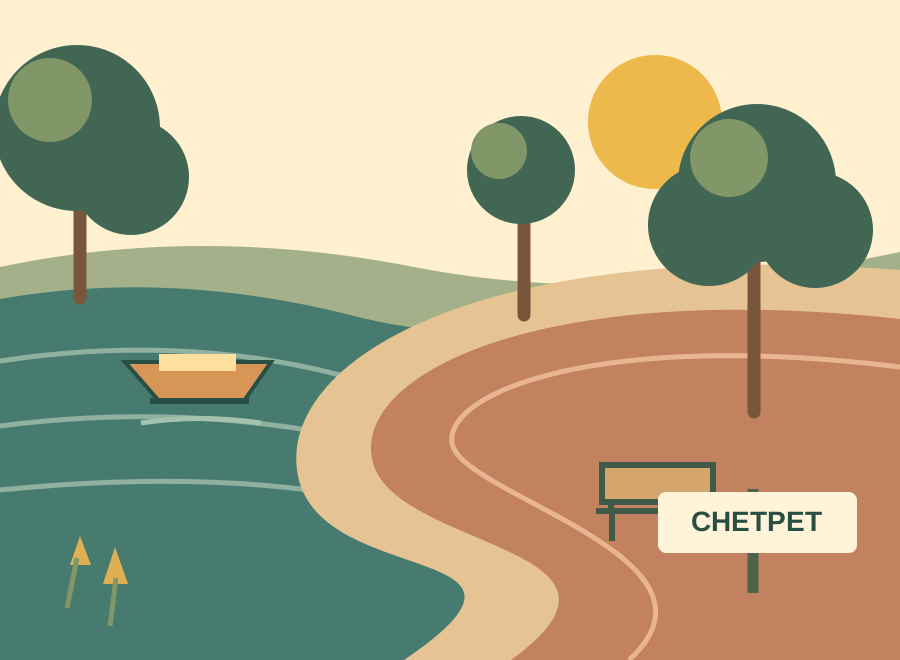
TNFDC identifies Chetpet Eco Park at Chetpet Lake in Chennai. The lake and park inspire this guide's locality illustration. When booking a restaurant visit, send the street, building entrance and floor as well as a landmark: “near the lake” alone is not enough to locate the counter. DeccanPro visits are arranged in advance; the landmark is not an endorsement or a customer reference.
Local reference: TNFDC: Chetpet Eco Park and lake. Use the restaurant exercises below with your own menu.
Establish whether the sale is still open
Ask the demonstrator to distinguish the running order, an amount preview and a completed sale in your installation. These may look similar to a new cashier. Do not assume that a button called Print only previews an order or that a paper bill can always be changed. If the sale is already completed, stop this exercise and use the provider's demonstrated procedure for a later purchase or correction. The scenario below assumes the order remains open and unpaid.
Keep a record of the first amount
Use fictional table C4 with two meals at Rs.150 each. Its item subtotal is Rs.300 before configured taxes, discounts or other adjustments. Show the guest the amount through the supported preview procedure and note the saved order reference. If a printed preview is unavailable, use the demonstrated on-screen review. The restaurant should be able to explain what this view represents without promising a particular document label or printing feature.
Add the coffee to the intended open order
The guest now requests one Rs.30 coffee. Ask the captain or cashier to find the same open C4 order and add the coffee through the supported workflow. Its item subtotal becomes Rs.330. Check that the kitchen receives one new coffee instruction and can distinguish it from the two meals already being prepared or served. Do not resend the entire meal order merely because the guest asked to see an updated amount.
Prevent the earlier preview from guiding payment
Show the current quantities and the revised calculation to the guest. Explain any configured adjustments separately; Rs.330 is this exercise's item subtotal, not a guaranteed final amount. Follow the restaurant's agreed method for handling an obsolete preview so another cashier does not use the earlier Rs.300 figure. This is a staff procedure to demonstrate, not a claim that DeccanPro automatically recalls printed paper or marks every earlier copy invalid.
Hand the order to a second cashier
Introduce another staff member with the earlier preview still present in the training setup. Ask them to open the current order and read its reference, two meals and one coffee before taking payment. The correct amount comes from the current verified bill, not whichever slip is nearest the till. If a guest has already paid against an earlier amount, reconcile the actual payment using the approved process instead of silently editing quantities or recording a second full payment.
Check both money and preparation at closure
Finish only when the cashier can explain the current bill and recorded payment outcome, and the kitchen can explain the additional coffee without repeating the meals. Ask the next colleague to identify which document is current and which was an earlier preview. Keep a short result note with the sample reference, supported preview method, change and outstanding issue. Bring your own bill layout and normal cashier account to the demo so this check reflects the way your restaurant will work.
Prepare your Chetpet demo
- Open unpaid order distinguished from completed sale.
- Preview method demonstrated on the actual installation.
- Same saved order retained through the addition.
- Sample subtotal checked independently: Rs.300 becomes Rs.330.
- Kitchen receives one extra coffee without duplicate meals.
- Earlier preview cannot be mistaken for the current amount by the next cashier.
- Actual payments checked separately from displayed totals.
- Current document and unresolved issues explained without prompting.